

Technologies
Blur Your Home on Google Maps Right Now to Protect Your Privacy
Don’t let online strangers get an easy look at where you live.


Google is a part of all our lives. All you need to do is take a look at Google Maps. It’s how we get directions, explore city landmarks in 3D, read and leave restaurant reviews, find public transport arrival times and so much more.
But there’s one feature within Google Maps that can quickly become a real privacy issue.
If you’ve ever used Street View, you know that you can enter any address into Google Maps and look at a recent image of what’s there, whether it’s a business or a residence. And while it’s useful for knowing what a building looks like when you’re getting directions there, it makes it easier for stalkers or criminals to plan their way inside of your home.
They’ve got a free ticket to examine your home online, look for any cameras and find a possible window to pry in through. Anyone can do this in person, but Google Maps makes it easier because you can spy on someone’s home from the comfort of your phone or computer.
Fortunately, there is an easy way to blur your home on Google Maps and help prevent others from seeing too many details of where you live. Here’s how to do it.
For more, here are seven essential Google Maps tips for the holidays and how Google Maps can help you figure out dinner.
How to blur your home on Google Maps
You’ll need to do this on your computer, as the blurring feature isn’t available in the Google Maps application on iOS or Android, and while it is accessible through the web browser on your mobile device, it’s rather difficult to use, so use a trusted web browser on your Mac or PC instead.
At maps.google.com, enter your home address in the search bar at the top-right, hit return, then click the photo of your home that appears.
Next, you’ll see the Street View of your location. Click Report a Problem at the bottom-right. The text is super tiny, but it’s there.
Now, it’s up to you to choose what you want Google to blur. Using your mouse, adjust the view of the image so that your home and anything else you want to blur is all contained within the red and black box. Use your cursor to move around and the plus and minus buttons to zoom in and out, respectively.
Once you’re finished adjusting the image, choose what you’re requesting to blur underneath:
- A face
- My home
- My car/license plate
- A different object
You’ll be asked to give a bit more detail as to what exactly you want blurred, in case the image is busy with several cars, people and other objects.
Also, be completely sure that what you select is exactly what you want blurred. Google mentions that once you blur something on Street View, it’s blurred permanently.
Finally, enter your email (this is required), verify the captcha (if needed) and click Submit.
You should then receive an email from Google that says it’ll review your report and get back to you once the request is either denied or approved. You may receive more emails from Google asking for more information regarding your request. Google doesn’t offer any information on how long your request will take to process, so just keep an eye out for any further emails.
For more, here’s how Google Maps can help you avoid crowded public transit.
Technologies
Does Charging Your Phone Overnight Damage the Battery? We Asked the Experts
Modern smartphones are protected against overcharging, but heat and use habits can still degrade your battery over time.

Plugging your phone in before you head to bed might seem like second nature. That way by the time your alarms go off in the morning, your phone has a full charge and is ready to help you conquer your day. However, over time, your battery will start to degrade. So is keeping your phone plugged in overnight doing damage to the battery?
The short answer is no. Keeping your phone plugged in all the time won’t ruin your battery. Modern smartphones are built with smart charging systems that cut off or taper power once they’re full, preventing the kind of «overcharging damage» that was common in older devices. So if you’re leaving your iPhone or Android on the charger overnight, you can relax.
That said, «won’t ruin your battery» doesn’t mean it has no effect. Batteries naturally degrade with age and use, and how you charge plays a role in how fast that happens. Keeping a phone perpetually at 100% can add extra stress on the battery, especially when paired with heat, which is the real enemy of longevity.
Understanding when this matters (and when it doesn’t) can help you make small changes to extend your phone’s lifespan.
Don’t miss any of our unbiased tech content and lab-based reviews. Add CNET as a preferred Google source.
The science behind battery wear
Battery health isn’t just about how many times you charge your phone. It’s about how it manages voltage, temperature and maintenance. Lithium-ion batteries age fastest when they’re exposed to extreme levels: 0% and 100%.
Keeping them near full charge for long stretches puts additional voltage stress on the cathode and electrolyte. That’s why many devices use «trickle charging» or temporarily pause at 100%, topping up only when needed.
Still, the biggest threat isn’t overcharging — it’s heat. When your phone is plugged in and running demanding apps, it produces heat that accelerates chemical wear inside the battery. If you’re gaming, streaming or charging on a hot day, that extra warmth does far more harm than leaving the cable plugged in overnight.
Apple’s take
Apple’s battery guide describes lithium-ion batteries as «consumable components» that naturally lose capacity over time. To slow that decline, iPhones use Optimized Battery Charging, which learns your daily routine and pauses charging at about 80% until just before you typically unplug, reducing time spent at high voltage.
Apple also advises keeping devices between 0 to 35 degrees Celsius (32 to 95 degrees Fahrenheit) and removing certain cases while charging to improve heat dissipation. You can read more on Apple’s official battery support page.
What Samsung (and other Android makers) do
Samsung offers a similar feature called Battery Protect, found in One UI’s battery and device care settings. When enabled, it caps charging at 85%, which helps reduce stress during long charging sessions.
Other Android makers like Google, OnePlus and Xiaomi include comparable options — often called Adaptive Charging, Optimized Charging or Battery Care — that dynamically slow power delivery or limit charge based on your habits. These systems make it safe to leave your phone plugged in for extended periods without fear of overcharging.
When constant charging can hurt
Even with these safeguards, some conditions can accelerate battery wear. As mentioned before, the most common culprit is high temperature. Even for a short period of time, leaving your phone charging in direct sunlight, in a car or under a pillow can push temperatures into unsafe zones.
Heavy use while charging, like gaming or 4K video editing, can also cause temperature spikes that degrade the battery faster. And cheap, uncertified cables or adapters may deliver unstable current that stresses cells. If your battery is already several years old, it’s naturally more sensitive to this kind of strain.
How to charge smarter
You don’t need to overhaul your habits but a few tweaks can help your battery age gracefully.
Start by turning on your phone’s built-in optimization tools: Optimized Battery Charging on iPhones, Battery Protect on Samsung devices and Adaptive Charging on Google Pixels. These systems learn your routine and adjust charging speed so your phone isn’t sitting at 100% all night.
Keep your phone cool while charging. According to Apple, phone batteries perform best between 62 and 72 degrees Fahrenheit (16 to 22 degrees Celsius). If your phone feels hot, remove its case or move it to a better-ventilated or shaded spot. Avoid tossing it under a pillow or too close to other electronics, like your laptop, and skip wireless chargers that trap heat overnight.
Use quality chargers and cables from your phone’s manufacturer or trusted brands. Those cheap «fast-charge» kits you find online often deliver inconsistent current, which can cause long-term issues.
Finally, don’t obsess over topping off. It’s perfectly fine to plug in your phone during the day for short bursts. Lithium-ion batteries actually prefer frequent, shallow charges rather than deep, full cycles. You don’t need to keep it between 20% and 80% all the time, but just avoid extremes when possible.
The bottom line
Keeping your phone plugged in overnight or on your desk all day won’t destroy its battery. That’s a leftover myth from a different era of tech. Modern phones are smart enough to protect themselves, and features like Optimized Battery Charging or Battery Protect do most of the heavy lifting for you.
Still, no battery lasts forever. The best way to slow the inevitable is to manage heat, use quality chargers and let your phone’s software do its job. Think of it less as «babying» your battery and more as charging with intention. A few mindful habits today can keep your phone running strong for years.
Technologies
Facebook Brings Back Local Job Listings: How to Apply
One of Facebook’s most practical features from 2022 is being revived by Meta.
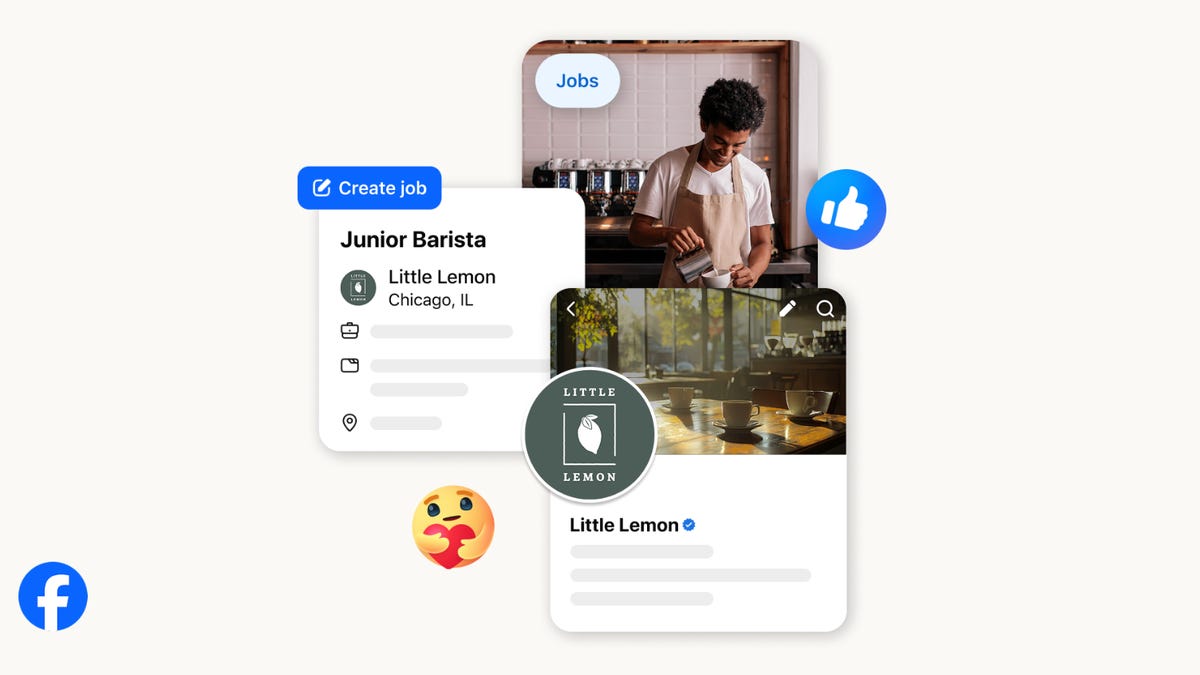
On the hunt for work? A Local Jobs search is being rolled out by Meta to make it easier for people in the US to discover and apply for nearby work directly on Facebook. The feature is inside Facebook Marketplace, Groups and Pages, Meta said last week, letting employers post openings and job seekers filter roles by distance, category or employment type.
You can apply or message employers directly through Facebook Messenger, while employers can publish job listings with just a few taps — similar to how you would post items for sale on Marketplace.
Don’t miss any of our unbiased tech content and lab-based reviews. Add CNET as a preferred Google source.
Facebook offered a Jobs feature before discontinuing it in 2022, pushing business hiring toward its other platforms. Its return suggests Meta is attempting to expand Facebook’s usefulness beyond social networking and to position it once again as a hub for community-driven opportunities.
Read more: Meta’s All In on AI Creating the Ads You See on Instagram, Facebook and WhatsApp
«We’ve always been about connecting with people, whether through shared interests or key life events,» the press release states. «Now, if you’re looking for entry-level, trade and service industry employment in your community, Facebook can help you connect with local people and small businesses who are hiring.»
Read more: What Is Meta AI? Everything to Know About These AI Tools
How to get started with Local Jobs on Facebook
According to Meta, Local Jobs will appear as a dedicated section in Facebook Marketplace starting this week. If you’re 18 or older, you can:
- Tap the Marketplace tab on the Facebook app or website.
- Select Jobs to browse available positions nearby.
- Use filters for job type, category and distance.
- Tap Apply or message the employer directly via Messenger.
Businesses and page admins can post jobs by creating a new listing in Marketplace or from their Facebook Page. Listings can include job details, pay range, and scheduling information and will appear in local searches automatically.
The Local Jobs feature is rolling out across the US now, with Meta saying it plans to expand it in the months ahead.
Technologies
Tesla Has a New Range of Affordable Electric Cars: How Much They Cost
The new, stripped-back versions of the Model Y and Model 3 have a more affordable starting price.

-
 Technologies3 года ago
Tech Companies Need to Be Held Accountable for Security, Experts Say
-
 Technologies3 года ago
Best Handheld Game Console in 2023
-
 Technologies3 года ago
Tighten Up Your VR Game With the Best Head Straps for Quest 2
-
 Technologies4 года ago
Verum, Wickr and Threema: next generation secured messengers
-
 Technologies4 года ago
Black Friday 2021: The best deals on TVs, headphones, kitchenware, and more
-
 Technologies4 года ago
Google to require vaccinations as Silicon Valley rethinks return-to-office policies
-
 Technologies4 года ago
Olivia Harlan Dekker for Verum Messenger
-
 Technologies4 года ago
iPhone 13 event: How to watch Apple’s big announcement tomorrow


