

Technologies
iMessage: Our 9 favorite features in Apple’s messaging platform
We’ll show you how to get the most out of iMessage, whether it’s sending money with Apple Pay to throwing confetti all over someone’s screen.

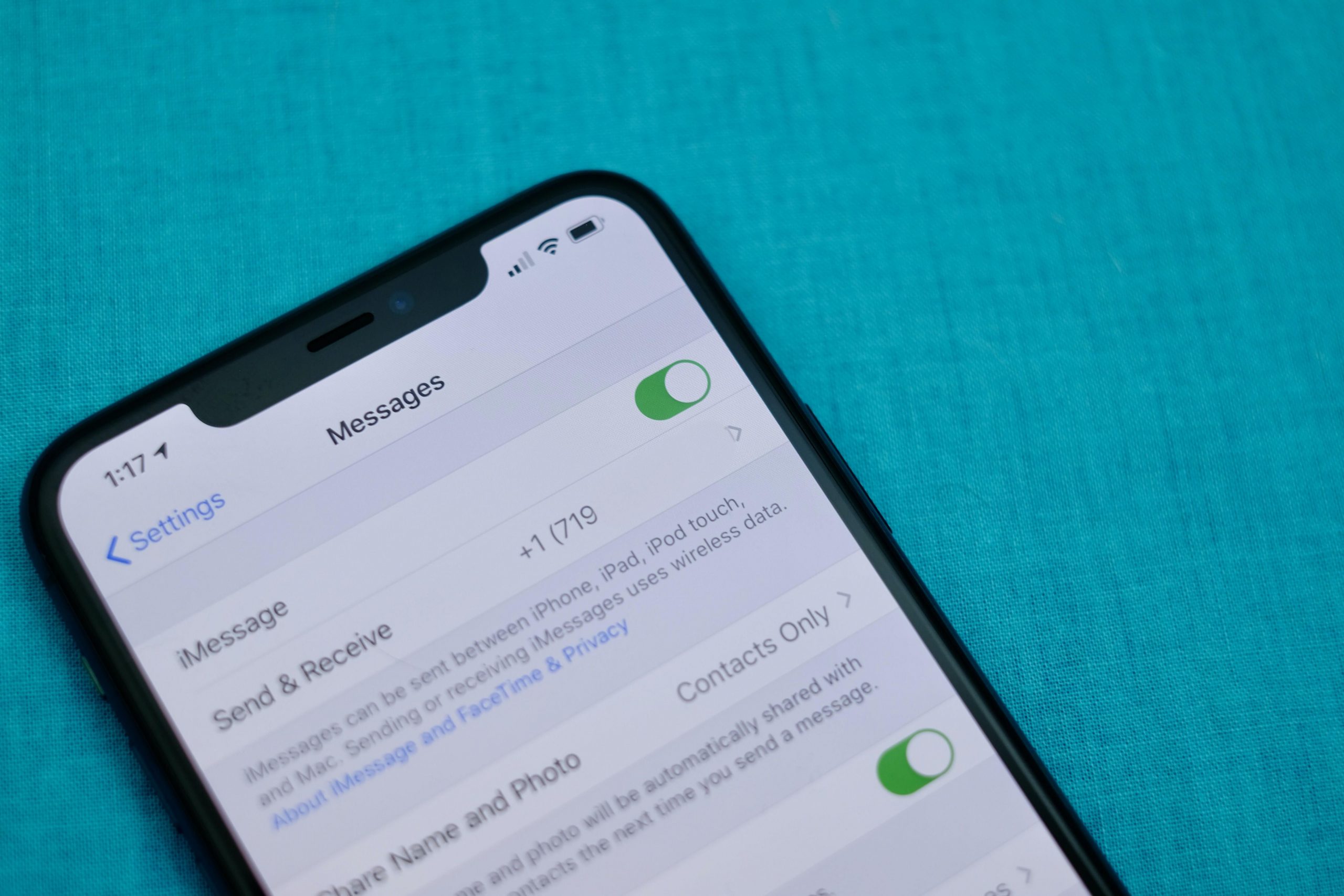
There’s just something about the addictive blue bubble of iMessage. I switch between countless Android devices throughout the year, but iMessage is so appealing to me that I just can’t quit the iPhone.
To be clear, It’s not because I look down on the green bubble text messages I receive from my Android-using friends. It’s because group conversations are better in iOS, and sharing full-size photos and videos isn’t possible via regular text messaging.
To me, Apple’s chat platform feels much more complete, and that’s in part because of the huge range of useful features that go beyond just typing in a message and sending along a link. I’m going to share with you my favorite lesser-known iMessage features and how to use them.
Tailor iMessage settings to work for you
It’s a good idea to open the Messages’ Settings screen and take a few minutes to go through the various options and customize how Messages will work. Most importantly, double check your send and receive settings.
I can’t tell you how many times I’ve been asked why some messages are showing up on a Mac or iPad ($279 at Amazon), but not an iPhone — or the other way around. Luckily, it’s an easy fix: Don’t use your email address(es), use only your phone number in the Send & Receive section of Message’s Settings.
Or if you don’t have an iPhone, but use iMessage on a Mac and iPad, then make sure your Send & Receive settings look identical. I have a thorough walkthrough of that process here.
The rest of the settings determine things like if read receipts are for on every iMessage conversation, whether or not you want text messages (those green bubbles) forwarded to your other Apple devices or kept on your iPhone, how long you want to keep messages on your device, and so on. Take a few minutes, go through each option, and decide how you want Messages to behave.
If you’re new to iMessage and are unsure how to turn it on, skip to the bottom of the post. We cover the process there.
Backup iMessages through iCloud
Having a constant backup of your iMessage conversations that syncs across all of your Apple devices is another one of my favorite benefits of Apple’s messaging platform. Apple uses iCloud to back up and sync your Messages conversations (that includes text messages, too).
.shortcode.newsletter h2 {width:100%!important;}
The short version of instructions is this: Open Settings > tap on your name > iCloud and make sure the toggle next to Messages is turned on.
Keep in mind, if you delete a conversation from one device, it will be deleted from all of your devices. That also means if you opted to have conversations only stored for 90 days, then your iCloud backup of Messages will follow suit.
We go into detail about Messages in iCloud and how to activate it on your Mac here.
Hide alerts, block numbers from messaging you and more
It’s easy enough to send and receive messages in the Messages app, and telling apart iMessages from text messages is easy as well — if the messages you send are green, it’s a text message. If the bubble is blue, you’re talking to a fellow iMessage user.
We have a roundup of 10 tips that take you beyond the basics of sending and receiving messages. For example, you can mute individual conversations with a left swipe across the conversation and select Hide Alerts; particularly useful if you’re in a noisy group who can’t quit talking about last night’s football game.
Make sure you take advantage of the new search feature, as well. You can search the Messages app for photos, links, attachments, and text within a conversation. Just open the Messages app and tap on the search bar at the top.
Send money to iPhone users through Apple Pay — it’s like Venmo
You can send and receive money using Apple Pay within an iMessage conversation just like you can with Venmo or Square Cash.
The process is simple — set up Apple Pay Cash and link a debit card to your account. With Apple Pay setup, you can use the Apple Pay app inside of iMessage to pay rent, request money from a friend to split a dinner bill, or use it to randomly send someone enough cash to cover a cup of coffee.
You’ll also notice whenever you send someone a message that contains a dollar amount, the number will be underlined, which means you (or the recipient) can tap on it to launch Apple Pay with the figure already filled out. It’s pretty cool.
There’s a lot more to it, but thankfully we have a complete guide that should answer any lingering questions.
Turn your iMessage personality up to 11
Did you know you can add light-hearted animations and fun stickers to your messages? It’s true. Another fun tool to use is the emoji converter. After typing your message you tap on your keyboard’s Emoji button and iOS will automatically find words that can be turned into emoji. It’s pretty cool and an easy way to use emoji without having to scroll through all of them.
Some other effects that are fun include:
- Bubble and screen effects for individual messages
- The ability to drag and drop stickers from Sticker packs onto a photo or message
- Send Memoji and Animoji talking messages
- A built-in image search that returns some of the best GIFs
Find out how to bring as much fun and interaction to your iMessage conversations as possible, and follow along as we walk you through all of that and then some.
Take time to set up a Memoji profile — it’s worth it
Speaking of personality, you may have noticed that you can now set your own profile icons using Memoji. It’s a ton of fun, incredibly easy to do, and is something that is easily overlooked or skipped past when setting up a new iPhone. Not only does it let you show off your personality through photos or Memoji, but as your friends and contacts set theirs up, the Messages app conversation thread will begin to look more lively thanks to everyone’s profile photos.
Edit your photo and contact name by opening the Messages app, tapping on the three-dot icon in the top-right corner, followed by Edit Name and Photo. You can then take a photo, use a Memoji, or use a photo from the photo gallery.
Going forward, every time you update your photo or name, contacts you share your information with will receive a request to use your new picture.
Only use read receipts for those who matter
One of my favorite features of iMessage is the ability to disable read receipts for everyone who messages me, yet turn them on for specific contacts. For me, that means I have read receipts off 99 percent of the time, with the lone exception being my wife and kids, so they know I’ve seen any important messages.
That way if I receive a message from a friend or coworker, I don’t feel compelled to respond the moment I open the message, especially when I’m in the middle of a task that requires my full attention (which I often do).
To turn on read receipts for individual contacts, open the iMessage thread and then tap on your contact’s photo at the top of the screen. Next, tap Info and then turn on Send Read Receipts.
The same option could be used in reverse, using it to turn off read receipts for a specific contact if you prefer to leave read receipts on for everyone. Meaning, you can disable read receipts for the person who constantly messages you and asks why you left them on read while leaving read receipts on for everyone else.
Chat over iMessage with businesses for customer service issues
Friends, colleagues, and acquaintances aren’t the only people you can talk to over iMessage. You can also talk to businesses for help with things like an order you placed on Newegg, or get report a fraudulent transaction on your Apple Card to Goldman Sachs in the Messages app.
A company that uses Apple Business Chat is easy to spot, with most companies listing a «Chat with Messages» button on their respective support pages or in their apps. Just tap on it to open a conversation. Right now, there isn’t a way to search iMessage for a business name.
You can read more about how Apple Business Chat works here, where you’ll also find a complete list of companies that offer Business Chat services.
Get iMessage set up
When you set up your Apple device — be it an iPhone, iPad or Mac — you’re asked to sign in to your iCloud account with your Apple ID. Once you sign in, Apple automatically turns on iMessage and links it to the email address(es) you use for your Apple ID, as well as your iPhone’s phone number.
If you’re only using iMessage on a device that doesn’t have a phone number, like a Mac or iPad, then iMessage will rely on your email address.
Open the Settings app on your iPhone or iPad and go to Messages and make sure the switch labeled iMessage at the top of the screen is in the On position.
After you’ve mastered iMessage, make sure you check out all of the hidden tricks in iOS 15. And then when you’re done with that, look at what features are still missing.
Originally published in January 2020 and updated frequently.
Technologies
Episode 2 of the VERUM Mini-Series is Now Out
Episode 2 of the VERUM Mini-Series is Now Out


The story continues. Verum Messenger has released the second episode of its AI mini-series, which follows the conflict between the powerful Omega corporation, aiming to control digital communications, and a team of heroes who have chosen a different path and free communication.
The mini-series not only develops an engaging storyline but also introduces viewers to the capabilities of the Verum ecosystem, showcasing technologies and tools that may redefine the future of modern communication.
The project consists of 7 episodes, released gradually across Verum Messenger’s social media channels.
Episode 2 is now available. Stay tuned and don’t miss what comes next.


Verum Messenger has unveiled a new project — a mini-series created using Verum AI. The story consists of 7 episodes and will be released on the messenger’s social media channels.
The plot revolves around a global corporation seeking to take control of digital communications and a group of heroes who use Verum Messenger as a tool of resistance. Beyond the story itself, the series highlights the app’s key features, technologies, and advantages.
Combining entertainment with a showcase of the Verum ecosystem, the project presents a dynamic digital series designed for the modern era.
The first episode premieres today, with the remaining episodes to be released over time.
Stay tuned for more.
Technologies
Verum Finance: Earn While You Communicate — The Super App That Pays You
Verum Finance: Earn While You Communicate — The Super App That Pays You


Verum has officially launched Verum Finance, an innovative financial application that transforms a private messenger into a true financial super app. News of the launch was also featured on the respected platform Dealroom.co.
Verum Finance can now be used both within Verum Messenger and as a standalone application for iPhone and iPad. When users sign in to Verum Finance with their Verum Messenger account, all balances, settings, and account data are automatically synchronized for maximum convenience.
Users can now do more than communicate securely and protect their data — they can also generate passive income directly within the ecosystem.
What Verum Finance Offers
• Top up your balance with a bank card, Apple Pay, or USDT
• Send money instantly anywhere in the world
• Issue and manage debit cards (virtual and physical)
• Full Apple Pay support
• Exchange assets and withdraw funds quickly
One of the most unique features is the built-in cryptocurrency mining system inside Verum Messenger.
The application utilizes your device’s resources and allows you to earn cryptocurrency in the background — passively, while chatting, traveling, or simply using the messenger.
Maximum Privacy + Real Freedom
• Registration without a phone number, email address, or passport
• End-to-end encryption and full control over your data
• Lifetime free VPN
• eSIM connectivity in more than 150 countries
• Reliable offline communication mode
• Support for 12+ languages for users worldwide
Everything is available in one place: secure communication, financial tools, earning opportunities, and privacy protection.
Users can access the full experience directly within Verum Messenger or switch to the dedicated Verum Finance app for iOS. All data is synchronized automatically between the two applications.
Why Download Verum Today
While many messaging platforms collect user data and expose users to restrictions, Verum offers greater independence and the opportunity to earn.
With a one-time purchase of the feature package, users receive lifetime access to privacy tools, VPN, eSIM services, cryptocurrency mining, and financial features.
This is more than just a messenger.
It is your personal tool for financial and digital freedom.
Download Verum Finance and Verum Messenger today — start communicating securely and begin earning tomorrow.
Download Links:
→ App Store (iPhone / iPad): Verum Finance
→ App Store (Verum Messenger): Verum Messenger
-
 Technologies3 года ago
Tech Companies Need to Be Held Accountable for Security, Experts Say
-
 Technologies3 года ago
Best Handheld Game Console in 2023
-
 Technologies5 лет ago
Black Friday 2021: The best deals on TVs, headphones, kitchenware, and more
-
 Technologies3 года ago
Tighten Up Your VR Game With the Best Head Straps for Quest 2
-
 Technologies5 лет ago
Google to require vaccinations as Silicon Valley rethinks return-to-office policies
-
 Technologies5 лет ago
Verum, Wickr and Threema: next generation secured messengers
-
 Technologies4 года ago
The number of Сrypto Bank customers increased by 10% in five days
-
 Technologies5 лет ago
Olivia Harlan Dekker for Verum Messenger


