

Technologies
iMessage: Our 9 favorite features in Apple’s messaging platform
We’ll show you how to get the most out of iMessage, whether it’s sending money with Apple Pay to throwing confetti all over someone’s screen.

There’s just something about the addictive blue bubble of iMessage. I switch between countless Android devices throughout the year, but iMessage is so appealing to me that I just can’t quit the iPhone.
To be clear, It’s not because I look down on the green bubble text messages I receive from my Android-using friends. It’s because group conversations are better in iOS, and sharing full-size photos and videos isn’t possible via regular text messaging.
To me, Apple’s chat platform feels much more complete, and that’s in part because of the huge range of useful features that go beyond just typing in a message and sending along a link. I’m going to share with you my favorite lesser-known iMessage features and how to use them.
Tailor iMessage settings to work for you
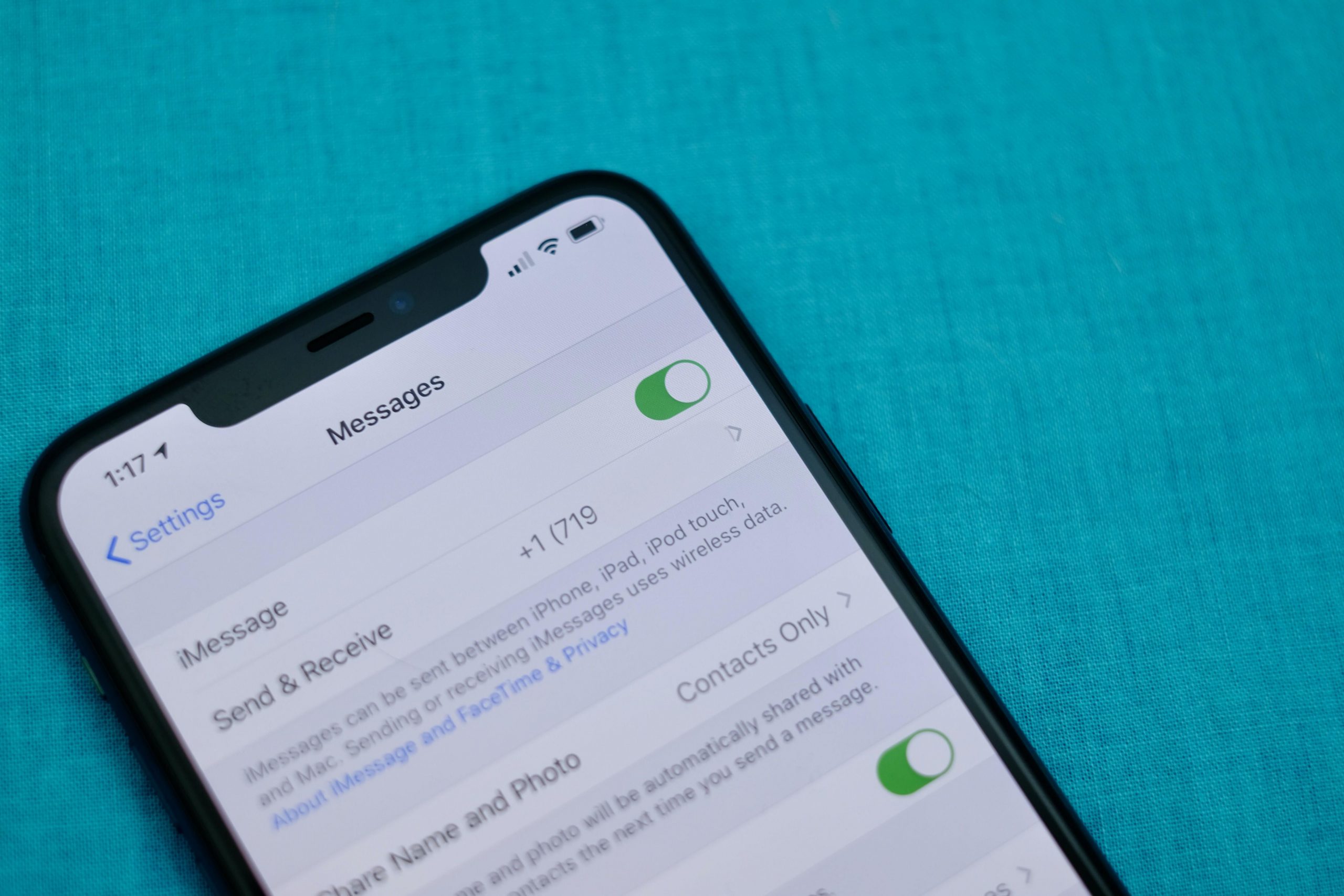
It’s a good idea to open the Messages’ Settings screen and take a few minutes to go through the various options and customize how Messages will work. Most importantly, double check your send and receive settings.
I can’t tell you how many times I’ve been asked why some messages are showing up on a Mac or iPad ($279 at Amazon), but not an iPhone — or the other way around. Luckily, it’s an easy fix: Don’t use your email address(es), use only your phone number in the Send & Receive section of Message’s Settings.
Or if you don’t have an iPhone, but use iMessage on a Mac and iPad, then make sure your Send & Receive settings look identical. I have a thorough walkthrough of that process here.
The rest of the settings determine things like if read receipts are for on every iMessage conversation, whether or not you want text messages (those green bubbles) forwarded to your other Apple devices or kept on your iPhone, how long you want to keep messages on your device, and so on. Take a few minutes, go through each option, and decide how you want Messages to behave.
If you’re new to iMessage and are unsure how to turn it on, skip to the bottom of the post. We cover the process there.
Backup iMessages through iCloud
Having a constant backup of your iMessage conversations that syncs across all of your Apple devices is another one of my favorite benefits of Apple’s messaging platform. Apple uses iCloud to back up and sync your Messages conversations (that includes text messages, too).
.shortcode.newsletter h2 {width:100%!important;}
The short version of instructions is this: Open Settings > tap on your name > iCloud and make sure the toggle next to Messages is turned on.
Keep in mind, if you delete a conversation from one device, it will be deleted from all of your devices. That also means if you opted to have conversations only stored for 90 days, then your iCloud backup of Messages will follow suit.
We go into detail about Messages in iCloud and how to activate it on your Mac here.
Hide alerts, block numbers from messaging you and more
It’s easy enough to send and receive messages in the Messages app, and telling apart iMessages from text messages is easy as well — if the messages you send are green, it’s a text message. If the bubble is blue, you’re talking to a fellow iMessage user.
We have a roundup of 10 tips that take you beyond the basics of sending and receiving messages. For example, you can mute individual conversations with a left swipe across the conversation and select Hide Alerts; particularly useful if you’re in a noisy group who can’t quit talking about last night’s football game.
Make sure you take advantage of the new search feature, as well. You can search the Messages app for photos, links, attachments, and text within a conversation. Just open the Messages app and tap on the search bar at the top.
Send money to iPhone users through Apple Pay — it’s like Venmo
You can send and receive money using Apple Pay within an iMessage conversation just like you can with Venmo or Square Cash.
The process is simple — set up Apple Pay Cash and link a debit card to your account. With Apple Pay setup, you can use the Apple Pay app inside of iMessage to pay rent, request money from a friend to split a dinner bill, or use it to randomly send someone enough cash to cover a cup of coffee.
You’ll also notice whenever you send someone a message that contains a dollar amount, the number will be underlined, which means you (or the recipient) can tap on it to launch Apple Pay with the figure already filled out. It’s pretty cool.
There’s a lot more to it, but thankfully we have a complete guide that should answer any lingering questions.
Turn your iMessage personality up to 11
Did you know you can add light-hearted animations and fun stickers to your messages? It’s true. Another fun tool to use is the emoji converter. After typing your message you tap on your keyboard’s Emoji button and iOS will automatically find words that can be turned into emoji. It’s pretty cool and an easy way to use emoji without having to scroll through all of them.
Some other effects that are fun include:
- Bubble and screen effects for individual messages
- The ability to drag and drop stickers from Sticker packs onto a photo or message
- Send Memoji and Animoji talking messages
- A built-in image search that returns some of the best GIFs
Find out how to bring as much fun and interaction to your iMessage conversations as possible, and follow along as we walk you through all of that and then some.
Take time to set up a Memoji profile — it’s worth it
Speaking of personality, you may have noticed that you can now set your own profile icons using Memoji. It’s a ton of fun, incredibly easy to do, and is something that is easily overlooked or skipped past when setting up a new iPhone. Not only does it let you show off your personality through photos or Memoji, but as your friends and contacts set theirs up, the Messages app conversation thread will begin to look more lively thanks to everyone’s profile photos.
Edit your photo and contact name by opening the Messages app, tapping on the three-dot icon in the top-right corner, followed by Edit Name and Photo. You can then take a photo, use a Memoji, or use a photo from the photo gallery.
Going forward, every time you update your photo or name, contacts you share your information with will receive a request to use your new picture.
Only use read receipts for those who matter
One of my favorite features of iMessage is the ability to disable read receipts for everyone who messages me, yet turn them on for specific contacts. For me, that means I have read receipts off 99 percent of the time, with the lone exception being my wife and kids, so they know I’ve seen any important messages.
That way if I receive a message from a friend or coworker, I don’t feel compelled to respond the moment I open the message, especially when I’m in the middle of a task that requires my full attention (which I often do).
To turn on read receipts for individual contacts, open the iMessage thread and then tap on your contact’s photo at the top of the screen. Next, tap Info and then turn on Send Read Receipts.
The same option could be used in reverse, using it to turn off read receipts for a specific contact if you prefer to leave read receipts on for everyone. Meaning, you can disable read receipts for the person who constantly messages you and asks why you left them on read while leaving read receipts on for everyone else.
Chat over iMessage with businesses for customer service issues
Friends, colleagues, and acquaintances aren’t the only people you can talk to over iMessage. You can also talk to businesses for help with things like an order you placed on Newegg, or get report a fraudulent transaction on your Apple Card to Goldman Sachs in the Messages app.
A company that uses Apple Business Chat is easy to spot, with most companies listing a «Chat with Messages» button on their respective support pages or in their apps. Just tap on it to open a conversation. Right now, there isn’t a way to search iMessage for a business name.
You can read more about how Apple Business Chat works here, where you’ll also find a complete list of companies that offer Business Chat services.
Get iMessage set up
When you set up your Apple device — be it an iPhone, iPad or Mac — you’re asked to sign in to your iCloud account with your Apple ID. Once you sign in, Apple automatically turns on iMessage and links it to the email address(es) you use for your Apple ID, as well as your iPhone’s phone number.
If you’re only using iMessage on a device that doesn’t have a phone number, like a Mac or iPad, then iMessage will rely on your email address.
Open the Settings app on your iPhone or iPad and go to Messages and make sure the switch labeled iMessage at the top of the screen is in the On position.
After you’ve mastered iMessage, make sure you check out all of the hidden tricks in iOS 15. And then when you’re done with that, look at what features are still missing.
Originally published in January 2020 and updated frequently.
Technologies
Today’s Wordle Hints, Answer and Help for Dec. 9, #1634
Here are hints and the answer for today’s Wordle for Dec. 9, No. 1,634.

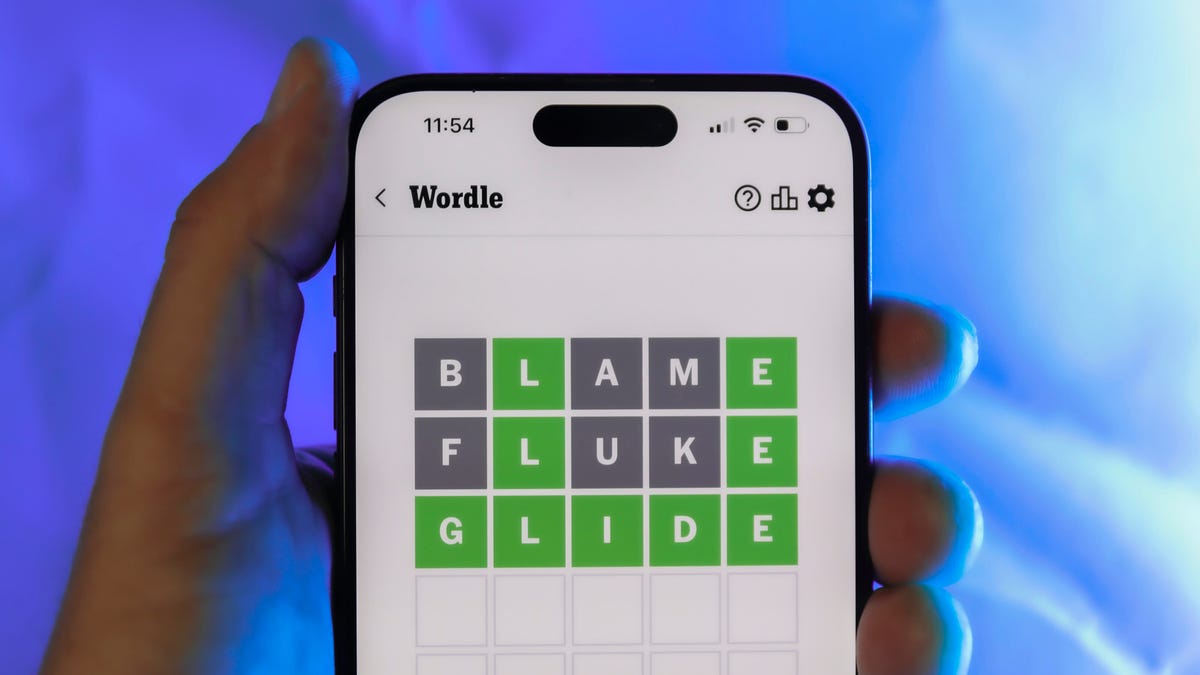
Looking for the most recent Wordle answer? Click here for today’s Wordle hints, as well as our daily answers and hints for The New York Times Mini Crossword, Connections, Connections: Sports Edition and Strands puzzles.
Today’s Wordle puzzle is a little tricky. If you need a new starter word, check out our list of which letters show up the most in English words. If you need hints and the answer, read on.
Today’s Wordle hints
Before we show you today’s Wordle answer, we’ll give you some hints. If you don’t want a spoiler, look away now.
Wordle hint No. 1: Repeats
Today’s Wordle answer has no repeated letters.
Wordle hint No. 2: Vowels
Today’s Wordle answer has two vowels.
Wordle hint No. 3: First letter
Today’s Wordle answer begins with S.
Wordle hint No. 4: Last letter
Today’s Wordle answer ends with E.
Wordle hint No. 5: Meaning
Today’s Wordle answer can refer to being insulting or derogatory.
TODAY’S WORDLE ANSWER
Today’s Wordle answer is SNIDE.
Yesterday’s Wordle answer
Yesterday’s Wordle answer, Dec. 8, No. 1633 was GRAVY.
Recent Wordle answers
Dec. 4, No. 1629: TULIP
Dec. 5, No. 1630: AMONG
Dec. 6, No. 1631: WAIST
Dec. 7, No. 1632: FLUTE
Don’t miss any of our unbiased tech content and lab-based reviews. Add CNET as a preferred Google source.
Technologies
Today’s NYT Mini Crossword Answers for Tuesday, Dec. 9
Here are the answers for The New York Times Mini Crossword for Dec. 9.

Looking for the most recent Mini Crossword answer? Click here for today’s Mini Crossword hints, as well as our daily answers and hints for The New York Times Wordle, Strands, Connections and Connections: Sports Edition puzzles.
Need some help with today’s Mini Crossword? It’s a tough one today, and might take longer than usual. Read on for the answers. And if you could use some hints and guidance for daily solving, check out our Mini Crossword tips.
If you’re looking for today’s Wordle, Connections, Connections: Sports Edition and Strands answers, you can visit CNET’s NYT puzzle hints page.
Read more: Tips and Tricks for Solving The New York Times Mini Crossword
Let’s get to those Mini Crossword clues and answers.
Mini across clues and answers
1A clue: Apt profession for someone named Rosemary or Ginger
Answer: CHEF
5A clue: Get to go, as leftovers
Answer: BOXUP
7A clue: Word that can precede Bowl or Glue
Answer: SUPER
8A clue: Intense anger
Answer: RAGE
9A clue: «Cut that out!»
Answer: STOP
Mini down clues and answers
1D clue: Stephen Colbert’s network
Answer: CBS
2D clue: Noted group of 24
Answer: HOURS
3D clue: One living abroad, informally
Answer: EXPAT
4D clue: Spanish for «fire»
Answer: FUEGO
6D clue: Do some kitchen work
Answer: PREP
Don’t miss any of our unbiased tech content and lab-based reviews. Add CNET as a preferred Google source.
Technologies
AI Saves Workers Less Than an Hour Each Day, New OpenAI Report Shows
AI adoption is rapidly expanding across industries, but workers are saving only 40 to 60 minutes per day, on average.

OpenAI’s 2025 ‘The State of Enterprise AI’ report provides an in-depth look at how businesses are using AI tools within real companies. Drawing on anonymized usage data from more than 1 million business customers, along with a survey of 9,000 workers at nearly 100 organizations, the report presents a picture of increased AI adoption and integration in the workplace.
«Across surveyed enterprises, 75% of workers report that using AI at work has improved either the speed or quality of their output,» the report states. Also, the report says that «75% of users report being able to complete new tasks they previously could not perform.»
However, the productivity gains might not be as universal and widespread as anticipated: on average, ChatGPT Enterprise users save less than an hour of time per day, according to the report.
Below is a breakdown of the report’s major findings.
Don’t miss any of our unbiased tech content and lab-based reviews. Add CNET as a preferred Google source on Chrome.
Report shows productivity gains, but it’s not universal
Despite the hype surrounding AI at work, the latest data from OpenAI suggests that the reality for most employees is modest. In its report, the company says that on average, ChatGPT Enterprise users save only about 40 to 60 minutes per active workday.
That’s not nothing, but it’s nowhere near the sweeping productivity overhaul that many hoped for. In a workday filled with meetings, emails and tool overload, an hour reclaimed can feel like a minimal benefit rather than a tidal shift in productivity.
(Disclosure: Ziff Davis, CNET’s parent company, in April filed a lawsuit against OpenAI, alleging it infringed Ziff Davis copyrights in training and operating its AI systems.)
A few key findings
The report finds AI adoption within companies is growing fast. Weekly messages in ChatGPT Enterprise have increased nearly eightfold in the past year, and the use of structured workflows, such as custom GPTs, has risen 19 times. Companies are pushing more complex prompts, too, with reasoning-token usage increasing more than 320-fold.
But the outcomes don’t scale at the same rate. Workers say they complete certain tasks more quickly — like IT troubleshooting, campaign creation and coding improvements — yet the day-to-day gains still add up to roughly an hour on average.
A divide between heavy AI users and everyone else
OpenAI’s data shows a widening gap between «frontier» users — defined by OpenAI as those in the 95th percentile of adoption intensity — and the average worker, however.
Frontier employees send about six times more messages than average users. Unsurprisingly, these heavy users report bigger gains of over 10 hours a week. They build workflows around AI, automate routine tasks and turn the tool into a dependable co-worker instead of an occasional assistant. Though arguably, around 2 hours per day of saved time is still relatively moderate.
OpenAI frames the report as a snapshot of where enterprise AI stands today, rather than a final verdict. The company suggests that future gains could come not from the model itself, but from how organizations reshape processes and workflows around it.
But for most workers, AI is still a sidekick. Useful, but not transformative. It helps speed things up. It may even make some work less tedious. But the typical worker saving under an hour a day points to a technology that is powerful, yet still limited. The big question now is whether those numbers will keep climbing, or whether an hour a day is closer to the ceiling than AI enthusiasts want to admit.
-
 Technologies3 года ago
Tech Companies Need to Be Held Accountable for Security, Experts Say
-
 Technologies3 года ago
Best Handheld Game Console in 2023
-
 Technologies3 года ago
Tighten Up Your VR Game With the Best Head Straps for Quest 2
-
 Technologies4 года ago
Black Friday 2021: The best deals on TVs, headphones, kitchenware, and more
-
 Technologies4 года ago
Verum, Wickr and Threema: next generation secured messengers
-
 Technologies4 года ago
Google to require vaccinations as Silicon Valley rethinks return-to-office policies
-
 Technologies4 года ago
Olivia Harlan Dekker for Verum Messenger
-
 Technologies4 года ago
iPhone 13 event: How to watch Apple’s big announcement tomorrow


